What's new
Ram Heavy Duty Forum

Register a free account today to become a member! Once signed in, you'll be able to participate on this site by adding your own topics and posts, as well as connect with other members through your own private inbox!

2022 Ram HD Builds and orders - Post and discuss your TRUCK order here! ** NEW USERS READ POST #1 **

  1. Open the ram tracker page
  2. Right click on the page
  3. Select inspect at the bottom
  4. On the page that opens, select network near top
  5. Refresh the page (or hit F5)
  6. Under the name column, find your name and left click it
  7. In the right column you should now see your info
  8. Click the triangle next to each item to expand the information that is underneath
My inspect option isn't clickable :(
 
My inspect option isn't clickable :(

Sorry dude...you have stumped the chump on that one. I'm not an IT guy, but I stayed at a Holiday Express last night!

I am sure it has to do with your Google Chrome settings. Is it a work computer? If so, your IT section may have the setting set to where you can't view code. As far as changing your current settings, one of many other expectant Ram fathers here should be able to help
 
Sorry dude...you have stumped the chump on that one. I'm not an IT guy, but I stayed at a Holiday Express last night!

I am sure it has to do with your Google Chrome settings. Is it a work computer? If so, your IT section may have the setting set to where you can't view code. As far as changing your current settings, one of many other expectant Ram fathers here should be able to help
yea - at work with super nanny IT settings..i'll check later this afternoon when i'm off work.
 
I looked at the inspect on the ram order tracking page and I went from D to C status. It is showing statusCode: "200" the 200 is in red. Any idea what that means?

Thankya!
 
yea - at work with super nanny IT settings..i'll check later this afternoon when i'm off work.
FWiW, in the Microsoft browsers (Internet Explorer, and Edge) pressing the F12 key on the keyboard will also bring up the dev tools (same as the Inspect option from the pop-up context menu).
I can't speak to other browser options like Firefox or Chrome.
 
My shipped date changed, must mean 2nd rail departure? The ETA also pushed back a couple days ago. And also when I called the rail today that also pushed back 1 day, to industry.
That means there's been an update to your schedule and more than likely has reached the next train station.
 
I looked at the inspect on the ram order tracking page and I went from D to C status. It is showing statusCode: "200" the 200 is in red. Any idea what that means?

Thankya!
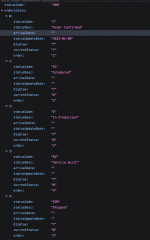
Maybe you are looking at what I first looked at. I thought I had gone back to C from D1. You will notice that there is an “order” of status codes. Each line has “current” status with a “N” or “Y”. Look at each line and pretty sure the Y is with your present status code. Hit "orderstatus" code triangle, then the triangle by 0, 1, 2, 3, etc. by the statusCode to see where the "Y" is at.
 
Last edited:
Maybe you are looking at what I first looked at. I thought I had gone back to C from D1. You will notice that there is an “order” of status codes. Each line has “current” status with a “N” or “Y”. Look at each line and pretty sure the Y is with your present status code. Hit "orderstatus" code triangle, then the triangle by 0, 1, 2, 3, etc. by the statusCode to see where the "Y" is at.
Hmmm...

  1. orderstatus: [{statusCode: "C", statusDesc: "Order Confirmed", arrivalDate: "", statusUpdateDate: "2022-03-30",…},…]
    1. 0: {statusCode: "C", statusDesc: "Order Confirmed", arrivalDate: "", statusUpdateDate: "2022-03-30",…}
    2. 1: {statusCode: "D1", statusDesc: "Scheduled", arrivalDate: "", statusUpdateDate: "", display: "Y",…}
    3. 2: {statusCode: "E", statusDesc: "In Production", arrivalDate: "", statusUpdateDate: "", display: "Y",…}
    4. 3: {statusCode: "KZ", statusDesc: "Vehicle Built", arrivalDate: "", statusUpdateDate: "", display: "Y",…}
    5. 4: {statusCode: "KZM", statusDesc: "Shipped", arrivalDate: "", statusUpdateDate: "", display: "Y",…}
    6. 5: {statusCode: "KZX", statusDesc: "Delivered", arrivalDate: "", statusUpdateDate: "", display: "Y",…}
  2. statusCode: "200"

I'm going to go check in my driveway, Mabey it's here and I missed it :cool:
 
Hmmm...

  1. orderstatus: [{statusCode: "C", statusDesc: "Order Confirmed", arrivalDate: "", statusUpdateDate: "2022-03-30",…},…]
    1. 0: {statusCode: "C", statusDesc: "Order Confirmed", arrivalDate: "", statusUpdateDate: "2022-03-30",…}
    2. 1: {statusCode: "D1", statusDesc: "Scheduled", arrivalDate: "", statusUpdateDate: "", display: "Y",…}
    3. 2: {statusCode: "E", statusDesc: "In Production", arrivalDate: "", statusUpdateDate: "", display: "Y",…}
    4. 3: {statusCode: "KZ", statusDesc: "Vehicle Built", arrivalDate: "", statusUpdateDate: "", display: "Y",…}
    5. 4: {statusCode: "KZM", statusDesc: "Shipped", arrivalDate: "", statusUpdateDate: "", display: "Y",…}
    6. 5: {statusCode: "KZX", statusDesc: "Delivered", arrivalDate: "", statusUpdateDate: "", display: "Y",…}
  2. statusCode: "200"

I'm going to go check in my driveway, Mabey it's here and I missed it :cool:
  1. 1: {statusCode: "D1", statusDesc: "Scheduled", arrivalDate: "", statusUpdateDate: "2022-04-27",…}
    1. arrivalDate: ""
    2. currentStatus: "Y"
    3. display: "Y"
    4. order: "2"
    5. statusCode: "D1"
    6. statusDesc: "Scheduled"
    7. statusUpdateDate: "2022-04-27"
This is what I get when I hit the triangle next to the "statusCode"
 
My inspect option isn't clickable :(
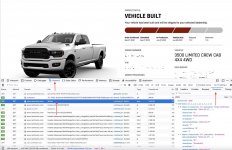
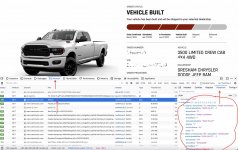
here's some screen shots for using Firefox web developer tools to view source code in the tracker.
image1: select Tools, Browser Tools, Web Developer Tools.
image2: select Inspector near the bottom third of the page and then refresh the page.
image3: select Network and scroll up or down and find your last name. select it. (See arrows)
image4: on the right side you should see the word Response as a menu item, select it. Just below the word Response is the window that has the code with your order status (see circled area)
Hope this helps.
I take no responsibility for spelling errors of any kind. I was a Programmer not an English teacher;)
 

Attachments

  • image1.jpg
    image1.jpg
    259.3 KB · Views: 51
  • image2.jpg
    image2.jpg
    261.2 KB · Views: 42
  • image3.jpg
    image3.jpg
    348.1 KB · Views: 51
  • image4.jpeg
    image4.jpeg
    354.9 KB · Views: 53
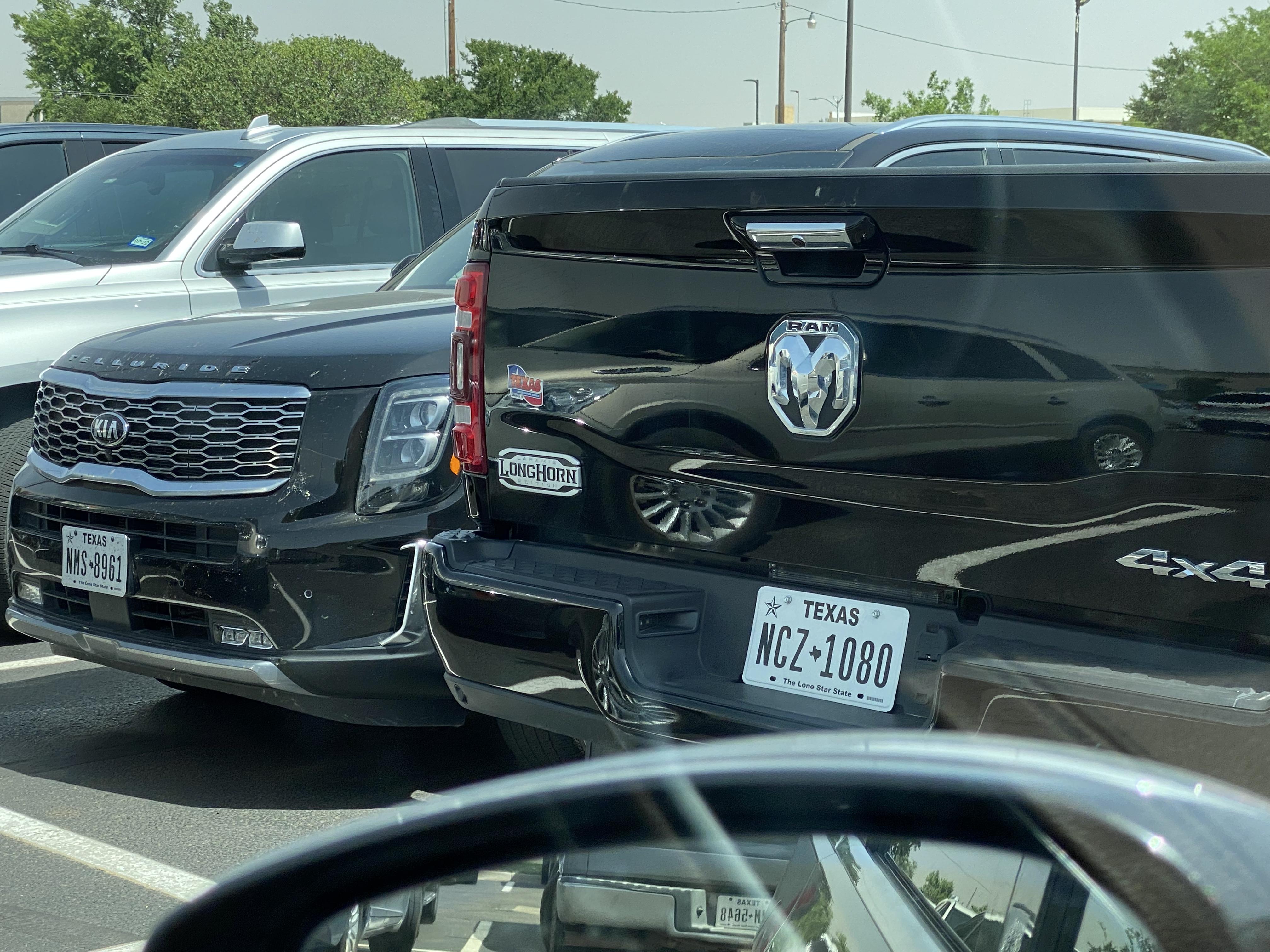
I need to look closer at my emblems. The other day when I was in Canyon, TX I saw a “Laramie Longhorn”. This whole time I thought they were all Limited Longhorn!

c00c093b7d0942cf1e6ef1739e45ddfe.jpg


Sent from my iPhone using Tapatalk
 
here's some screen shots for using Firefox web developer tools to view source code in the tracker.
image1: select Tools, Browser Tools, Web Developer Tools.
image2: select Inspector near the bottom third of the page and then refresh the page.
image3: select Network and scroll up or down and find your last name. select it. (See arrows)
image4: on the right side you should see the word Response as a menu item, select it. Just below the word Response is the window that has the code with your order status (see circled area)
Hope this helps.
I take no responsibility for spelling errors of any kind. I was a Programmer not an English teacher;)
I believe you are KZ or KZM, right? Can you screenshot that statusCode screen where it shows "Y" as your current status. That will help others.
 
I did the same thing on my tracker and I saw an arrival date of 7-19-22. I've seen this date before but I can't recall if it was a delivery date or a ship date. Currently both are TBD.

I just read your response and tried looking into the Ram tracker and could not find a way to " inspect"
Any help would be appreciated,
thanks in advance
Leroy

  1. Open the ram tracker page
  2. Right click on the page
  3. Select inspect at the bottom
  4. On the page that opens, select network near top
  5. Refresh the page (or hit F5)
  6. Under the name column, find your name and left click it
  7. In the right column you should now see your info
  8. Click the triangle next to each item to expand the information that is underneath

thank you brother ram member

My inspect option isn't clickable :(

Sorry dude...you have stumped the chump on that one. I'm not an IT guy, but I stayed at a Holiday Express last night!

I am sure it has to do with your Google Chrome settings. Is it a work computer? If so, your IT section may have the setting set to where you can't view code. As far as changing your current settings, one of many other expectant Ram fathers here should be able to help

FWiW, in the Microsoft browsers (Internet Explorer, and Edge) pressing the F12 key on the keyboard will also bring up the dev tools (same as the Inspect option from the pop-up context menu).
I can't speak to other browser options like Firefox or Chrome.

Hmmm...

  1. orderstatus: [{statusCode: "C", statusDesc: "Order Confirmed", arrivalDate: "", statusUpdateDate: "2022-03-30",…},…]
    1. 0: {statusCode: "C", statusDesc: "Order Confirmed", arrivalDate: "", statusUpdateDate: "2022-03-30",…}
    2. 1: {statusCode: "D1", statusDesc: "Scheduled", arrivalDate: "", statusUpdateDate: "", display: "Y",…}
    3. 2: {statusCode: "E", statusDesc: "In Production", arrivalDate: "", statusUpdateDate: "", display: "Y",…}
    4. 3: {statusCode: "KZ", statusDesc: "Vehicle Built", arrivalDate: "", statusUpdateDate: "", display: "Y",…}
    5. 4: {statusCode: "KZM", statusDesc: "Shipped", arrivalDate: "", statusUpdateDate: "", display: "Y",…}
    6. 5: {statusCode: "KZX", statusDesc: "Delivered", arrivalDate: "", statusUpdateDate: "", display: "Y",…}
  2. statusCode: "200"

I'm going to go check in my driveway, Mabey it's here and I missed it :cool:

  1. 1: {statusCode: "D1", statusDesc: "Scheduled", arrivalDate: "", statusUpdateDate: "2022-04-27",…}
    1. arrivalDate: ""
    2. currentStatus: "Y"
    3. display: "Y"
    4. order: "2"
    5. statusCode: "D1"
    6. statusDesc: "Scheduled"
    7. statusUpdateDate: "2022-04-27"
This is what I get when I hit the triangle next to the "statusCode"

here's some screen shots for using Firefox web developer tools to view source code in the tracker.
image1: select Tools, Browser Tools, Web Developer Tools.
image2: select Inspector near the bottom third of the page and then refresh the page.
image3: select Network and scroll up or down and find your last name. select it. (See arrows)
image4: on the right side you should see the word Response as a menu item, select it. Just below the word Response is the window that has the code with your order status (see circled area)
Hope this helps.
I take no responsibility for spelling errors of any kind. I was a Programmer not an English teacher;)
i think what you all are looking for can be done much simpler with this

replace von with your Vehicle Order Number
replace lastname with your own Last Name on the Order


Let me know
 

Attachments

  • Screen Shot 2022-06-16 at 14.39.27.png
    Screen Shot 2022-06-16 at 14.39.27.png
    467.5 KB · Views: 47
I need to look closer at my emblems. The other day when I was in Canyon, TX I saw a “Laramie Longhorn”. This whole time I thought they were all Limited Longhorn!

c00c093b7d0942cf1e6ef1739e45ddfe.jpg


Sent from my iPhone using Tapatalk
I'm about 80% positive of this, but I recall up to 2020 are "Laramie" Longhorns, and 21+ are considered "Limited" Longhorns. Yours should be a Limited on all badging.
 
I need to look closer at my emblems. The other day when I was in Canyon, TX I saw a “Laramie Longhorn”. This whole time I thought they were all Limited Longhorn!

c00c093b7d0942cf1e6ef1739e45ddfe.jpg


Sent from my iPhone using Tapatalk
I just looked at my 2 year old Limited Longhorn 1500. Umm, yep its a Laramie Longhorn. How did I not see that?
 
Back
Top