Hey guys, trying to help people convert their trucks to have the newer tech features from later model trucks. I’m working on a full conversion, and I’ll happily help you guys with it all. I don’t sell anything so you’ll have to source everything on your own. Please keep the comments on topic. I know I haven't commented much but I have read a lot on this forum so I figured I'd share my knowledge to y'all. This will cover almost everything to convert your earlier truck to a later model truck. All of this has been tested on my current 2020 2500 diesel with every single option at the time. YMMV but I suspect it should be all the same for all 19-21's.
Step 1: Uconnect 5
Items Needed:
Basic Tools
Uconnect 5 display (part numbers vary on options but any 2022 and newer screen should work)
Radio Module: 68583500ae
Adapter Harness
CVPM Module *If you have 360 camera : 56029967af
AlfaObd and Obdlink MX+ (some cheaper options work, see comments below)
SGW dual bypass. YOU MUST HAVE A BYPASS FOR HIGH AND MID SPEED CAN, OTHERWISE YOU CANT RELEARN THE 360 CAMERAS
*Disclaimer* I haven’t been able to get Sirius XM to work
1. Remove the Display. On top of the uconnect 12 there’s two 10mm bolts. Loosen and pull, the display should pop off. Disconnect all the connectors behind it and set it aside.
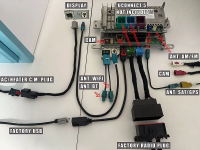
2. Now you should see the radio module, go ahead and remove it there’s 4 bolts holding it in and quite a few connectors. Be careful when installing the new module. Follow this diagram, !DO NOT USE THE WIFI BLUETOOTH AND AC HEATER ADAPTER!
3. Remove your old display from the bezel and transfer over the new display assembly
4. Reinstall the display into your dashboard.
5. Open and connect to alfaobd, under bcm, change model year to 2023.
Congratulations, you should have a working uc5
Under the drivers seat you will find your camera module. Remove the cover and disconnect it. Swap the new cvpm in.
You must have alfaobd for this with the dual sgw bypass and obdlink mx+.
Now everything should be working properly. Congratulations, you can now sell all your old uc4 stuff and have uc5 for not too much more money. If your maps are wrong go to Stellantis and update them. Enjoy. This is definitely my first suggested step as it brings the biggest changes in ui.
Step 1: Uconnect 5
Items Needed:
Basic Tools
Uconnect 5 display (part numbers vary on options but any 2022 and newer screen should work)
Radio Module: 68583500ae
Adapter Harness
CVPM Module *If you have 360 camera : 56029967af
AlfaObd and Obdlink MX+ (some cheaper options work, see comments below)
SGW dual bypass. YOU MUST HAVE A BYPASS FOR HIGH AND MID SPEED CAN, OTHERWISE YOU CANT RELEARN THE 360 CAMERAS
*Disclaimer* I haven’t been able to get Sirius XM to work
1. Remove the Display. On top of the uconnect 12 there’s two 10mm bolts. Loosen and pull, the display should pop off. Disconnect all the connectors behind it and set it aside.
2. Now you should see the radio module, go ahead and remove it there’s 4 bolts holding it in and quite a few connectors. Be careful when installing the new module. Follow this diagram, !DO NOT USE THE WIFI BLUETOOTH AND AC HEATER ADAPTER!
3. Remove your old display from the bezel and transfer over the new display assembly
4. Reinstall the display into your dashboard.
5. Open and connect to alfaobd, under bcm, change model year to 2023.
Congratulations, you should have a working uc5
Next steps are necessary if you have 360 camera
Under the drivers seat you will find your camera module. Remove the cover and disconnect it. Swap the new cvpm in.
You must have alfaobd for this with the dual sgw bypass and obdlink mx+.
- Find a nice empty road about a ¼ mile long and straight.
- Go to radio, connect to central visioning processing module. If it fails here you have the wrong adapter.
- Do manual connect and send code 8502
- Go back to start and disconnect then reconnect
- Go to trouble codes and clear faults
- Go into active diagnostics. Hit cvpm service calibration. Select option. All cameras worked fine for me doing this process, but you may have to do each camera individually clearing codes and restarting the process everytime. START DRIVING AT 3-8 MPH. THEN HIT START. You should see your display change if you did everything correctly. Once it finishes clear the codes one more time and now everything should work correctly.
Now everything should be working properly. Congratulations, you can now sell all your old uc4 stuff and have uc5 for not too much more money. If your maps are wrong go to Stellantis and update them. Enjoy. This is definitely my first suggested step as it brings the biggest changes in ui.
Last edited:
